
What is this and why is it useful?
If you sell many products, you know that the costs of those products can sometimes change. Perhaps shipping costs increase, or you get a better deal from your supplier. Instead of updating each product one by one, you can now update all your cost prices at once. How? By downloading a special file - a CSV file - editing it, and uploading it again.
How do you do this?
Step 1: Download your current cost prices
- Go to the 'Products' tab in Boloo.
- Click the 3 dots in the top right of the page
- Click 'Export products'.
- You will now download a CSV file containing all your products. This file contains the following columns:
- EAN (example: 2939101232)
- Product name (example: Fidget spinner) - NOT EDITABLE
- Purchase price (example: €2.31)
- Shipping costs (example: €3.91)
- Transportation costs (example: €0.30)
- Branding costs (example: €0.10)
- Packaging costs (example: €0.15)
- Transaction costs (example: €0.05)
- Surcharge for shipping to Belgium (example: €1.00)
- Pick & Pack costs (example: €1.20)
- Other costs
- Fulfilment method - NOT EDITABLE
- LVB format (example: XXS)
- Own stock (example: 124)
Step 2: Edit the cost prices
- Open the CSV file with a program that can edit spreadsheets, such as Excel, Google Sheets, or Numbers.
- Simply change all costs per product in the file.
- IMPORTANT: Export the file as CSV (if the option is available: Unicode UTF-8) and save it.
PLEASE NOTE: Editing the product name and fulfilment method is NOT possible via this tool. Changes to these fields will not be applied during import.
Step 3: Upload the new cost prices
- Go back to the 'Products' tab in Boloo.
- Click the 3 dots in the top right of the page
- Click 'Import products'.
- Click the blue box (or drag your file directly into the box) and select the new, edited CSV file.
- Choose the CSV file you edited.
- Click 'Upload'.
Step 4: Confirm the changes
A pop-up will appear. When you import a CSV and make changes to it, only those cost prices will be updated. If you have not made any changes to a product, we will of course NOT update that product either.
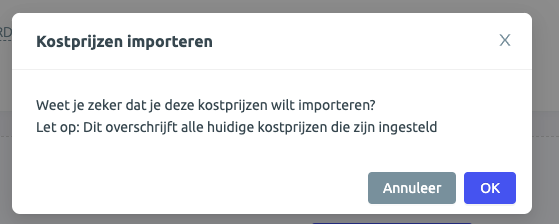
Click 'OK' to start the import.
Frequently Asked Questions
What if I forget an EAN code?
No worries - if an EAN code is not in the file, that price simply stays the same. We match products by EAN code.
What if I enter something incorrectly?
If you make a mistake, you will receive an error message. The other correctly entered prices will still be updated. You can edit the CSV and upload it again.
What about LVB products?
When you sell your product via LVB, it is unfortunately NOT possible to change the package size via the CSV import/export. Changes in the shipping costs column for products sold via LVB will NOT be applied.
What if I enter an EAN code that doesn't exist?
If you enter an EAN code that the system doesn't recognize, you will receive an error message saying "EAN not recognized". The other codes will still be updated normally.